Host Configuration
Overview
The host machine for the Istari Digital Agent must be configured appropriately in order for the Istari Digital Agent to install and run properly.
Avoiding Downtime
The Istari Digital Agent is intended to run continuously, so as to provide 24/7 service to users of the Istari Digital Platform. As such, the host machine should be configured to minimize sleeping, hibernation, and automated shutdowns and restarts. If the host machine shuts down or restarts the Istari Digital Agent will not be available again until the host machine is brought back online and the agent starts again. On Windows the agent normally starts again on its own: the installer's Run on startup option is checked by default and registers the agent under HKEY_CURRENT_USER\Software\Microsoft\Windows\CurrentVersion\Run, so it starts when the account that installed it next signs in. It does not start at boot, so a host nobody signs in to stays offline. Installing the agent as a Windows service, using the version 11.4.0 beta installer, starts it at boot instead, independently of any sign-in.
Windows
Operating System Version
The host machine should be running one of the following Windows versions:
- Windows 10
- Windows 11
- Windows Server 2019
- Windows Server 2022
Allow Installers
Several different things stop an agent MSI from installing, and the message on screen tells you which one you have. The options below are not interchangeable.
- "The system administrator has set policies to prevent this installation." Windows Installer itself is turned off by policy, whatever the file is. Use Option 1.
- "Windows protected your PC", or a warning about an unrecognized app. SmartScreen, reacting to the mark Windows attached when the file was downloaded. Clearing that mark resolves it: use Option 2 or Option 3.
- A block attributed to your organization or your system administrator. Application control — WDAC or AppLocker — is refusing the file by policy. None of the options below apply; clearing the download mark does not affect an application-control decision. On a centrally managed fleet this is handled with a rule that allows the publisher, rather than machine by machine.
- A prompt about an unknown publisher. The signature did not validate, which is usually an incomplete download or a missing root certificate rather than a policy. Do not clear the mark and install anyway — check the signature with
Get-AuthenticodeSignature, and contact Istari Digital support if it does not reportValid.
Windows Installer Trust covers all of these in detail: how the packages are signed and how to verify a release, why SmartScreen warns on every new release, delivering the installer without the download mark, and allow-listing Istari Digital by publisher in WDAC, AppLocker, or Trusted Publishers.
Option 1
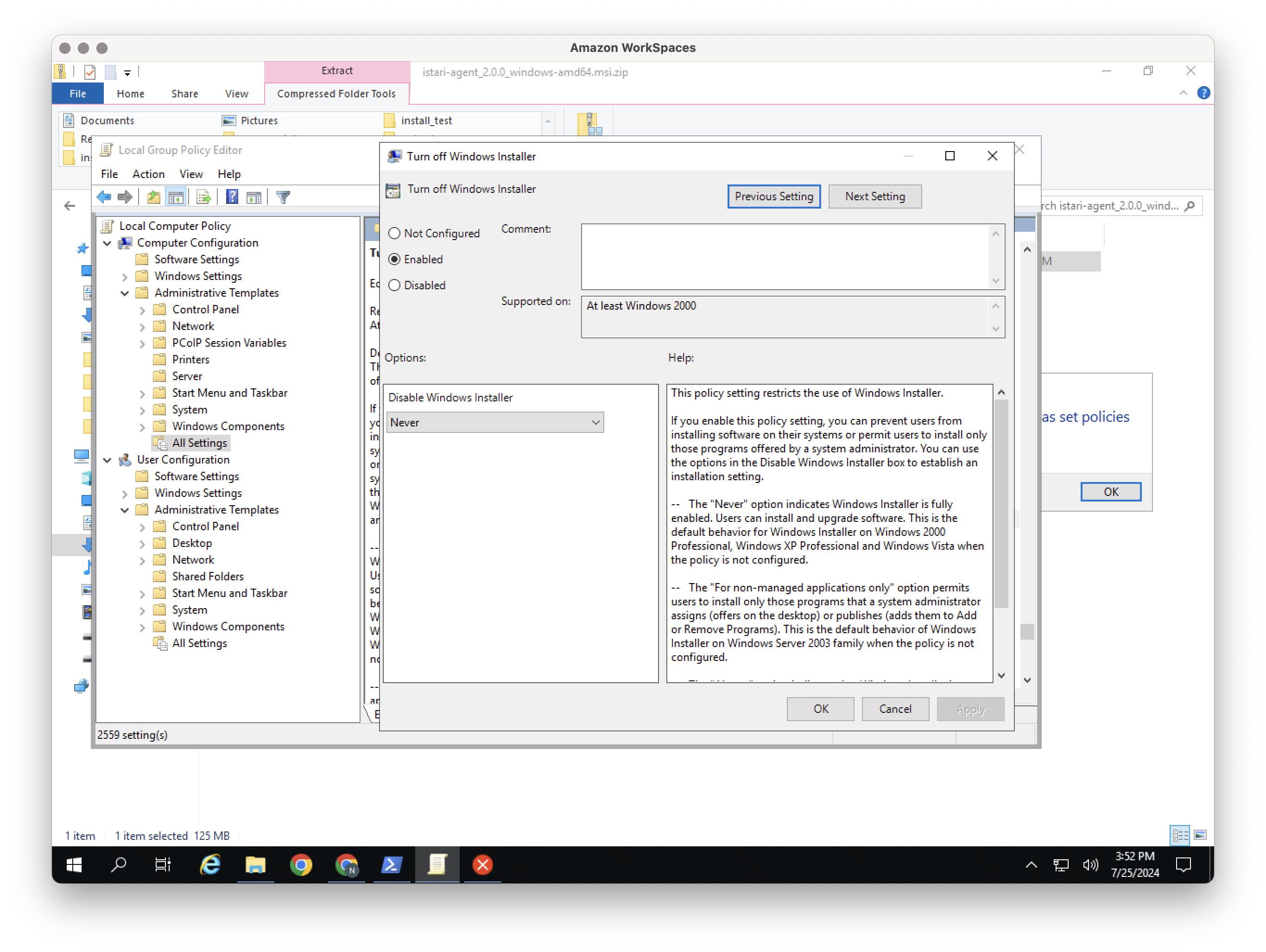
Open Group Policy settings (search 'gpedit' in the Start menu) and navigate to Local Computer Policy > Computer Configuration > Administrative Templates > All Settings in the left-hand panel, then select Turn off Windows Installer in the list of policies in the center panel.
Set the policy to Enabled and the option Disable Windows Installer to Never.
Option 2
Use Powershell's Unblock-File command to allow the specific installer file
Option 3
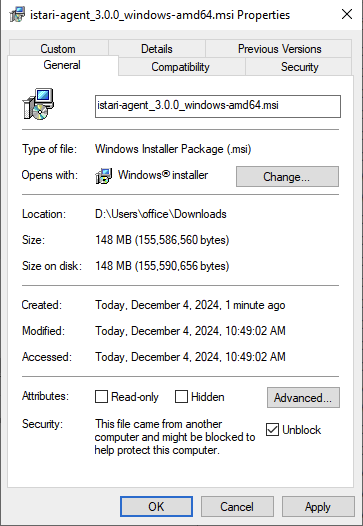
Right-click the installation file -> Properties -> Check off the "Unblock" value in Security section.
RHEL
Operating System Version
The host machine should be running one of the following RHEL versions:
- RHEL 9
Ubuntu
The host machine should be running one of the following Ubuntu versions:
- 22.04 LTS
Network Egress and Proxies
If the host's network requires outbound traffic to pass through a forward proxy, or blocks direct egress to object storage, see Proxy Configuration.